• Fri frakt över 249 kr
  • •
  • Snabba leveranser
  • •
  • Billiga böcker
Kundservice

Du är på sajten för privatpersoner.

Företag, bibliotek eller offentlig verksamhet?

Du handlar på classic.bokus.com, där alla dina funktioner finns intakta.
Till classic.bokus.com
Bokus logotyp. Gå till startsidan.
  • Erbjudanden
  • Student
  • Topplistor
  • Barn & ungdom
  • Bokus Play
  • E-böcker
  • Ljudböcker
  • Pocketböcker
  • Spel & pussel

10% rabatt på allt med kod NYSTART10 →

Sidfot

Mina sidor

    Hjälp

    • Kundservice
    • Vanliga frågor och svar
    • Frakt och leverans
    • Retur vid ångerrätt
    • Reklamera vara
    • Betalning
    • Köpvillkor
    • Allmänna villkor
    • Information om webbplatsens tillgänglighet

    Om Bokus

    • Om oss
    • Pressrum
    • För studenter
    • För företag
    • För bibliotek och offentlig verksamhet
    • För leverantörer
    • Hållbarhet

    Populärt

    • Aktuella erbjudanden
    • Presentkort
    • Studentlitteratur
    • Nya böcker
    • Topplistor
    • Signerade böcker
    • Engelska böcker

    Inspiration

    • Boktips
    • BookTok
    • Populära bokserier
    • Barnbokskaraktärer
    • Populära författare
    Logotyp för Bokus
    Följ oss på Facebook (extern länk)Följ oss på Instagram (extern länk)Följ oss på YouTube (extern länk)Följ oss på TikTok (extern länk)
    bokus @ CookiesAnpassa cookiesIntegritetspolicyKöpvillkor
    Till Citymail hemsida (extern länk)Till Budbee hemsida (extern länk)Till Postnord hemsida (extern länk)Till Schenker hemsida (extern länk)Till Early Bird hemsida (extern länk)Till Walleys hemsida (extern länk)
    1. Data och IT
    2. Affärsapplikationer

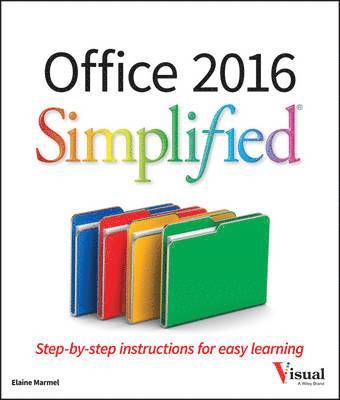
    Office 2016 Simplified

    AvElaine Marmel

    Häftad, Engelska, 2015

    Del i serien Simplified

    346 kr

    Beställningsvara. Skickas inom 3-6 vardagar. Fri frakt över 249 kr.

    Fler format och utgåvor

    E-bok

    268 kr

    E-bok

    269 kr

    Beskrivning

    Start learning the latest in Office Office Simplified is the quick, easy, full-color guide to the new features and tools of the latest version of Office. With a clear, highly visual, introductory style of instruction, this book gives you step-by-step directions alongside illustrative screen shots to help you learn Microsoft's bestselling productivity software. You'll take a tour through all Office applications, and learn how the new tools can make your workday easier. The simplified approach eliminates unnecessary information, focusing instead on the essentials you need to know to get things done. Organized for easy navigation, this helpful guide is designed to be used both as a start-to-finish tutorial and as a handy desk reference when you run into unfamiliar territory. Whether you're upgrading from a previous version or using the Office suite of applications for the first time, this book has you covered every step of the way. You'll find the answers you need, new tools you can use, and the step-by-step guidance that helps you get it right on the first try. Get acquainted with the Office workflowWalk through Word, Excel, PowerPoint, Outlook, and PublisherFollow along with practical examples to tackle dozens of tasksCompose documents, create spreadsheets, organize your email, and moreThis book provides the ideal rundown of Microsoft Office's full feature set and capabilities. Even experienced users may learn something they never realized they were missing. If you need to get things done with minimal interruption to your workflow, Office Simplified will get you up to speed quickly and easily.

    Produktinformation

    • Utgivningsdatum:2015-12-04
    • Mått:213 x 252 x 20 mm
    • Vikt:1 043 g
    • Format:Häftad
    • Språk:Engelska
    • Serie:Simplified
    • Antal sidor:416
    • Förlag:John Wiley & Sons Inc
    • ISBN:9781119074748

    Utforska kategorier

    • Affärsapplikationer inom Data och IT

    Mer om författaren

    Elaine Marmel (Phoenix, AZ) is President of Marmel Enterprises, LLC, an organization that specializes in technical writing and software training. Elaine has an MBA from Cornell University and worked on projects to build financial management systems for New York City and Washington, D.C. and trained more than 600 employees to use these systems. This prior experience provided the foundation for Marmel Enterprises, LLC to help small businesses manage the project of implementing a computerized accounting system. Elaine spends most of her time writing; she has authored and co-authored over seventy books. She left her native Chicago for the warmer climes of Arizona (by way of Cincinnati, OH; Jerusalem, Israel; Ithaca, NY; Washington, D.C. and Tampa, FL) where she basks in the sun with her PC, her cross stitch projects, and her dog Jack.

    Innehållsförteckning

    • OFFICE FEATURESChapter 1 Office BasicsStart and Exit Office Applications 4Navigate the Program Windows 6Work with Backstage View 7Change the Color Scheme 8Find a Ribbon Command 10Work with the Ribbon 12Customize the Quick Access Toolbar 14Using an Office Program on a Tablet PC 16Chapter 2 Working with FilesCreate a New File 18Save a File 20Open a File 22Print a File 24Email a File 26Select Data 28Cut, Copy, and Paste Data 30Arrange Windows 32Chapter 3 Office Graphics ToolsInsert a Picture 34Insert an Online Picture 36Resize and Move Objects 38Understanding Graphics Modification Techniques 40Chapter 4 Working with Office Files OnlineOffice and the Cloud 42Sign In to Office 365 44Share a Document from Office 46Download Apps from the Office Store 48Sign In to OneDrive 50Using an Online App in OneDrive 52Using an Office Program from OneDrive 54Upload a Document to OneDrive 56Share a Document Using OneDrive 58WORDChapter 5 Adding TextChange Word’s Views 62Type and Edit Text 64Insert Quick Parts 66Insert Symbols 68Create a Blog Post 70Chapter 6 Formatting TextChange the Font, Size, and Color 72Align Text 76Set Line Spacing 77Indent Text 78Set Tabs 80Set Margins 82Create Lists 84Copy Formatting 86Clear Formatting 87Format with Styles 88Using a Template 90EXCELChapter 7 Adding Extra TouchesInsert an Online Video 92Assign a Theme 94Add Borders 96Create Columns 98Insert a Table 100Apply Table Styles 102Insert Table Rows or Columns 103Add Headers and Footers 104Insert Footnotes and Endnotes 106Insert Page Numbers and Page Breaks 108Generate a Table of Contents 110Create a Bibliography 112Chapter 8 Reviewing DocumentsWork in Read Mode View 114Find and Replace Text 116Scan Document Content 118Check Spelling and Grammar 120Work with AutoCorrect 122Using Word’s Thesaurus and Dictionary 124Translate Text 126Track and Review Document Changes 128Lock and Unlock Tracking 130Work with Comments 132EXCELChapter 9 Building SpreadsheetsEnter Cell Data 136Select Cells 137Faster Data Entry with AutoFill 138Turn On Text Wrapping 140Center Data Across Columns 141Adjust Cell Alignment 142Change the Font and Size 144Change Number Formats 146Increase or Decrease Decimals 147Add Cell Borders and Shading 148Format Data with Styles 150Apply Conditional Formatting 152Add Columns and Rows 154Resize Columns and Rows 156Freeze Column and Row Titles On‐Screen 157Name a Range 158Clear or Delete Cells 160Split and Format a Column of Data 162Chapter 10 Worksheet BasicsAdd a Worksheet 164Name a Worksheet 165Change Page Setup Options 166Move and Copy Worksheets 168Delete a Worksheet 169Find and Replace Data 170Create a Table 172Filter or Sort Table Information 174Analyze Data Quickly 176Understanding Data Analysis Choices 177Track and Review Worksheet Changes 178Insert a Comment 180Chapter 11 Working with Formulas and FunctionsUnderstanding Formulas 182Create a Formula 184Apply Absolute and Relative Cell References 186Understanding Functions 188Apply a Function 190Total Cells with AutoSum 192Audit a Worksheet for Errors 194Chapter 12 Working with ChartsCreate a Chart 196Move and Resize Charts 198Change the Chart Type 200Change the Chart Style 201Change the Chart Layout 202Add Chart Elements 203Format Chart Objects 204Change the Chart Data 205Using Sparklines to View Data Trends . . . . . . . . . . . . . .206POWERPOINTChapter 13 Creating a PresentationCreate a New Presentation 210Create a Photo Album Presentation 212Change PowerPoint Views 214Insert Slides 216Change the Slide Layout 217Change the Slide Size 218Chapter 14 Populating Presentation SlidesAdd and Edit Slide Text 220Change the Font, Size, and Color 222Apply a Theme 226Set Line Spacing 227Align Text 228Add a Text Box to a Slide 229Add a Table to a Slide 230Add a Chart to a Slide 232Add a Video Clip to a Slide 234Move a Slide Object 236Resize a Slide Object 237Chapter 15 Assembling and Presenting a Slide ShowReorganize Slides 238Reuse a Slide 240Define Slide Transitions 242Add Animation Effects 244Record Narration 246Insert a Background Song 247Create Speaker Notes 248Rehearse a Slide Show 250Run a Slide Show 252Review a Presentation 256Package Your Presentation on a CD 258Present Online 260ACCESSChapter 16 Database BasicsUnderstanding Database Basics 264Create a Database Based on a Template 266Create a Blank Database 268Create a New Table 270Change Table Views 272Add a Field to a Table 274Delete a Field from a Table 275Hide a Field in a Table 276Move a Field in a Table 277Create a Form 278Change Form Views 280Move a Field in a Form 281Delete a Field in a Form 282Apply a Database Theme 283Chapter 17 Adding, Finding, and Querying DataAdd a Record to a Table 284Add a Record to a Form 286Navigate Records in a Form 288Search for a Record Using a Form 289Delete a Record from a Table 290Delete a Record Using a Form 291Sort Records 292Filter Records 294Apply Conditional Formatting 296Perform a Simple Query 298Create a Report 302OUTLOOKChapter 18 Organizing with OutlookNavigate in Outlook 306Schedule an Appointment 308Create a New Contact 310Create a New Task . . . . . . . . . . . . . . . . . . . . .312Add a Note 314Customize the Navigation Bar 316Peek at Appointments and Tasks 318Search for Outlook Items 320Work with the To‐Do Bar 322Link Contacts 323Chapter 19 Emailing with OutlookCompose and Send a Message 324Send a File Attachment 326Read an Incoming Message 327Reply To or Forward a Message 328Add a Sender to Your Outlook Contacts 330Delete a Message 331Work with Conversations 332Screen Junk Email 334PUBLISHERChapter 20 Publisher BasicsCreate a Publication 338Zoom In and Out 340Add Text 342Add a New Text Box 343Swap Pictures 344Save a Publication for Photo Center Printing 346Chapter 21 Fine‐Tuning a PublicationChange the Font, Size, and Color 348Apply a Text Effect 352Change Text Alignment 353Add a Border 354Control Text Wrap 355Link Text Boxes 356Edit the Background 358Taking Notes with OneNoteNavigate OneNote 362Type and Draw Notes 364Insert and Format a Table 366Attach Files to Notes 368Create a Quick Note 369Insert a Screen Clipping 370Record an Audio Note 372ONENOTEChapter 22 Organizing and Sharing NotesCreate a New Notebook 374Create a New Section 375Create a New Page 376Rename a Section or Page 377Group Sections 378Search Notes 380Search for Recent Edits 382Set Synchronization Options 383Share Notes with People Who Do Not Have OneNote 384