• Fri frakt över 249 kr
  • •
  • Snabba leveranser
  • •
  • Billiga böcker
Kundservice

Du är på sajten för privatpersoner.

Företag, bibliotek eller offentlig verksamhet?

Du handlar på classic.bokus.com, där alla dina funktioner finns intakta.
Till classic.bokus.com
Bokus logotyp. Gå till startsidan.
  • Erbjudanden
  • Nyheter
  • Student
  • Topplistor
  • Barn & ungdom
  • Bokus Play
  • E-böcker
  • Pocketböcker
  • Spel & pussel

10% rabatt på allt med kod NYSTART10 →

Sidfot

Mina sidor

    Hjälp

    • Kundservice
    • Vanliga frågor och svar
    • Frakt och leverans
    • Retur vid ångerrätt
    • Reklamera vara
    • Betalning
    • Köpvillkor
    • Allmänna villkor
    • Information om webbplatsens tillgänglighet

    Om Bokus

    • Om oss
    • Pressrum
    • För studenter
    • För företag
    • För bibliotek och offentlig verksamhet
    • För leverantörer
    • Hållbarhet

    Populärt

    • Aktuella erbjudanden
    • Presentkort
    • Studentlitteratur
    • Nya böcker
    • Topplistor
    • Signerade böcker
    • Engelska böcker

    Inspiration

    • Boktips
    • BookTok
    • Populära bokserier
    • Barnbokskaraktärer
    • Populära författare
    Logotyp för Bokus
    Följ oss på Facebook (extern länk)Följ oss på Instagram (extern länk)Följ oss på YouTube (extern länk)Följ oss på TikTok (extern länk)
    bokus @ CookiesAnpassa cookiesIntegritetspolicyKöpvillkor
    Till Citymail hemsida (extern länk)Till Budbee hemsida (extern länk)Till Postnord hemsida (extern länk)Till Schenker hemsida (extern länk)Till Early Bird hemsida (extern länk)Till Walleys hemsida (extern länk)
    1. Data och IT
    2. Digital livsstil och datorspel

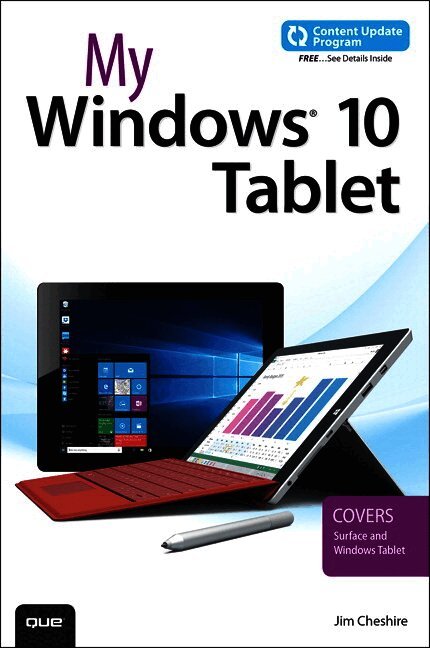
    My Windows 10 Tablet

    Covers Windows 10 Tablets including Microsoft Surface Pro

    AvJim Cheshire

    Häftad, Engelska, 2015

    Del i serien My...

    176 kr

    Beställningsvara. Skickas inom 7-10 vardagar. Fri frakt över 249 kr.

    Beskrivning

    If you own or are considering a Windows 10 tablet, My Windows® 10 Tablet s your must-have companion. This friendly, quick, full-color, 100% practical tutorial walks you through every task you'll want to perform with your new tablet, no matter what brand or model you choose.  In addition, this book is part of Que’s Content Update Program. As Microsoft updates features of Windows 10, sections of this book will be updated or new sections will be added to match the updates to the software. The updates will be delivered to you via a FREE Web Edition of this book, which can be accessed with any Internet connection.  My Windows 10 Tablet is an easy, full-color tutorial on the latest operating system from Microsoft, which covers the following topics:  · Taking advantage of Windows 10's best new features for tablets· Getting productive fast, and taking control of the new Windows 10 interface and Start menu· Securely connecting your Windows 10 tablet and using it safely in mobile environments· Browsing the Web more quickly and reliably with the new Edge browser· Connecting your tablet to your phone, other PCs, and other devices· Making the most of the Cortana personal digital assistant· Working with Windows 10–compatible Microsoft Office apps· Using Continuum to work seamlessly on both tablets and other Windows devices· Updating, maintaining, and troubleshooting your tablet· Saving time and using your tablet to enhance your daily life  Every task is presented step-by-step, using carefully annotated, colorful screenshots, all numbered so there's no chance of getting lost or confused. Everything's clearly organized in modular, self-contained chapters designed to help you get started quickly. Throughout, the book is packed with helpful tips, lists, and quick solutions to the problems you're most likely to encounter.  How to access the web edition:Follow the instructions in the book to learn how to register your book to access the FREE Web Edition.

    Produktinformation

    • Utgivningsdatum:2015-10-15
    • Mått:155 x 230 x 26 mm
    • Vikt:812 g
    • Format:Häftad
    • Språk:Engelska
    • Serie:My...
    • Förlag:Pearson Education (US)
    • ISBN:9780789755452

    Utforska kategorier

    • Digital livsstil och datorspel inom Data och IT
    • Operativsystem inom Data och IT

    Mer om författaren

    Jim Cheshire has been using Microsoft software for decades. He has worked for Microsoft for almost 20 years and currently works in the cloud computing world of Azure. He has written more than a dozen books on technology.

    Innehållsförteckning

    • Introduction 1What You’ll Find InsideWhy You’ll Love My Windows 10 TabletWhat You’ll Find in the BookGo DeeperChapter 1 An Introduction to Windows 10Windows 10 BasicsThe Start MenuTask ViewTyping in Windows 10Handwriting in Windows 10Tablet ModeStorage SettingsBattery SaverViewing NotificationsChanging Quick ActionsAdditional SettingsScreen Brightness and Rotation LockShutting Down, Sleeping, and RestartingSync SettingsMoving OnChapter 2 Connecting to NetworksWireless NetworkingConnecting to a Wireless NetworkDisconnecting from a NetworkForgetting a Wireless NetworkUsing Airplane ModeNetwork Sharing and DiscoveryTurning Sharing and Discovery On or OffAccessing Network ResourcesRemoting In to Other ComputersEnabling Connections on the Remote ComputerConnecting to Remote ComputersChapter 3 Using and Customizing the Start Menu and TaskbarLocating and Launching AppsLaunching Apps from the Start MenuLaunching Apps from the TaskbarSearching for AppsSwitching Between AppsSwitching Between Running AppsDisplaying a List of Running AppsDisplaying Two Apps SimultaneouslyUsing Task ViewCreating a Virtual DesktopDeleting a Virtual DesktopSwitching DesktopsMoving Apps Between DesktopsOrganizing the Start Menu and TaskbarRearranging Apps on the Start MenuNaming Start Menu GroupsChanging or Removing a Start Menu Group NameRearranging Start Menu GroupsRearranging Taskbar ButtonsCustomizing the Start Menu and TaskbarPinning Apps to the Start MenuPinning Apps to the TaskbarRemoving Apps from the Start MenuRemoving Buttons from the TaskbarRemoving Apps from the Most Used ListChanging the Start Menu Tile SizeChanging the Taskbar LocationChapter 4 Security and Windows 10Securing Your TabletChanging Your Password on a Microsoft AccountChanging Your Password on a Local AccountLocking Your TabletSigning Out of Your TabletConfiguring Auto-LockUsing Picture PasswordsCreating a Picture PasswordChanging Your Picture PasswordReplaying Your Picture PasswordRemoving Your Picture PasswordUsing PINsCreating a PINChanging a PINSigning In with a PINUsing a PIN When a Picture Password Is SetUsing a Fingerprint ReaderAdding a FingerprintRemoving FingerprintsManaging User AccountsAdding a Local AccountAdding a Microsoft AccountRemoving a User AccountChanging an Account TypeSetting an Account for Assigned AccessClearing Assigned AccessSwitching AccountsChanging from a Local Account to a Microsoft AccountSwitching to a Local AccountChapter 5 Using Microsoft FamilyAdding and Removing Family MembersAdding a Family MemberRemoving a Family MemberControlling Website AccessBlocking Inappropriate WebsitesExplicitly Allowing a SiteRemoving an Allowed SiteExplicitly Blocking a SiteRemoving a Blocked SiteResponding to RequestsControlling App AccessSetting Age Restrictions on Windows Store AppsBlocking Specific AppsUnblocking an AppEnabling Assigned AccessDisabling Assigned AccessControlling PC AccessBlocking a Child from Signing InUnblocking a Child from Signing InSetting Time and Day Restrictions on UsageConfiguring and Reviewing ReportsEnabling Activity Reporting and Weekly ReportsReviewing Website ActivityReviewing App ActivityReviewing Device UsageChapter 6 Backing Up Your Data with File HistoryConfiguring and Starting File HistoryStarting Your First BackupSelecting a Different DriveExcluding FoldersChoosing When Backups HappenControlling How Long Backups Are KeptRestoring FilesRestoring Files to the Original LocationResolving File ConflictsRestoring to a Different LocationCleaning Up FilesPerforming a CleanupTroubleshooting File HistoryViewing File History Event HistoryChapter 7 Finding Information on the InternetBrowsing and Searching WebsitesBrowsing to a WebsiteOpening a Link in a New TabOpening a Link in a New WindowAdding a FavoriteBrowsing to a FavoriteDeleting a FavoriteViewing Browsing HistorySaving Websites for Reading LaterUsing Reading ViewChanging Reading View OptionsSearching the InternetConfiguring EdgeChanging the Page Edge Opens WithClearing Browser DataDisabling the Pop-Up BlockerUsing Cortana with the WebGetting Restaurant Directions and ReviewsReviewing Cortana Search ResultsAsking Cortana for More InformationUsing Web NotesAdding Web Notes to a Web PageSaving Web Notes to OneNoteSaving a Web Note to Favorites or Reading ListChapter 8 Using CortanaConfiguring CortanaEnabling CortanaChanging Your NameAdjusting Cortana SettingsUsing the NotebookChanging Category SettingsTurning Off a Category’s CardsTurning On a Category’s CardsSearching with CortanaSearching Your TabletSearching the WebUsing RemindersSetting a Reminder for a Specific TimeSetting a Place ReminderSetting a People ReminderChapter 9 Connecting with PeopleWorking with Contacts Adding Contacts from the Cloud Changing Contact Sort Order Filtering Your Contacts Linking Contacts Unlinking Contacts Creating a New Contact Deleting a Contact Removing All Contacts from a ServiceEditing a ContactSharing Contact InformationSharing a ContactAccepting a Shared ContactChapter 10 Using Mail Adding and Managing Email Accounts Adding a Microsoft Account Adding an Exchange or Office 365 Account Adding a Google Account Adding an iCloud Account Adding a POP or IMAP Account Setting When and How Much Email Is Downloaded Removing an Account Reading and Organizing Email Reading an Email Viewing or Saving Email Attachments Deleting Email Messages Undeleting Email Messages Composing and Sending Email Creating a New Email Message Replying to Email Formatting Text in an Email Attaching Files to a Email Setting Mail Options Setting a Background Picture Setting Reading Options Configuring Quick Actions Sending Automatic Replies Configuring Notifications Using an Email Signature Chapter 11 Using Calendar Connecting CalendarsAdding an Outlook.com Calendar Adding a Google (Gmail) Calendar Adding an iCloud Calendar Viewing Calendars Hiding a Calendar Changing a Calendar’s Display Color Viewing Events Working with Events Adding a Basic Event Quickly Creating an Event Adding a Recurring Event Setting Reminders Specifying an Event Status Creating a Private Event Editing an Event Deleting an Event Calendar Settings Changing the First Day of the Week Changing Days in Your Work Week Changing Working Hours Chapter 12 Keeping Up to Date with News Reading the News Reading an Article Sharing News Reading Local News Watching Videos Adding and Removing News Interests Adding or Removing Included News Interests Adding a Custom News Interest Chapter 13 HomeGroups and OneDrive Using HomeGroups Creating a HomeGroup Joining a HomeGroup Leaving a HomeGroup Accessing Shared Files Using OneDrive Syncing Folders with OneDrive Accessing Your Files Remotely Sharing Files Chapter 14 Discovering and Playing Music Managing Your Music Library Adding a Folder to Your Collection Controlling Album Art and Metadata Deleting Music from Your Collection Browsing Your Music Collection Browsing Albums Browsing Artists Browsing Songs Searching for MusicUsing Groove Music Pass Purchasing a Groove Music Pass Subscription Automatically Downloading Groove Music Pass Music Downloading Groove Music Pass Music Music PlaylistsAdding Songs to the Now Playing Playlist Creating a Playlist Adding Songs to a Playlist Editing a Playlist Renaming a Playlist Deleting a Playlist Seeing What’s PlayingShuffling or Repeating Songs in a Playlist Using Radio Creating a Radio Station Playing a Radio Station Deleting a Radio Station Chapter 15 Watching Video Managing Videos Adding Videos to the Movies & TV App Exploring, Buying, and Renting Videos Browsing Movies and TV Shows Renting Movies Buying Movies Buying TV Shows Playing Videos Playing Videos on Your Tablet Chapter 16 Using Photos Viewing Pictures and Video Browsing Pictures Watching a Slide Show Watching Video Deleting Pictures Using a Picture as Your Lock Screen Editing Pictures and Video Rotating Pictures Automatically Enhancing Pictures Cropping a Picture Removing Red Eye Retouching a Photo Using Filters Adjusting Lighting Adjusting Color Applying a Vignette Effect Using Selective Focus Trimming a Video Chapter 17 Using Maps Exploring Maps Viewing and Zooming Changing the Units of Measurement Changing the Map Style Exploring in 3D Showing Traffic Searching Maps Searching for a Place Adding Favorites Editing or Deleting a Favorite Getting Directions Getting Directions Updating Maps and Using Offline Maps Updating Maps Downloading Maps Chapter 18 Creating Documents with Microsoft Word Mobile Creating, Opening, and Saving Documents Creating a New Blank Document Creating a Document from a Template Saving Documents Opening Documents Managing Recent Documents Formatting Text Formatting Text Formatting Text Using Styles Adding and Formatting Pictures Adding a Picture Applying a Picture Style Positioning a Picture Rotating a Picture Cropping a Picture Sharing Documents Inviting Others to a Document Getting Sharing Links to a Document Sharing a Document Using Email Reading in Word Mobile Using Read View Using Insights Chapter 19 Crunching Numbers with Microsoft Excel Mobile Creating, Opening, and Saving Workbooks Creating a Workbook Opening Workbooks Saving Workbooks Entering Data Adding DataResizing a Column Changing Data Formatting Adding a Table Working with Sheets Creating Sheets Renaming Sheets Coloring Sheets Organizing Sheets Deleting Sheets Creating Formulas Directly Entering a Formula Using the Formulas Toolbar Sharing Workbooks Chapter 20 Presenting with Microsoft PowerPoint Mobile Creating, Opening, and Saving Presentations Creating a Presentation Opening a Presentation Saving a Presentation Creating Slides and Content Adding a New Slide Changing a Slide’s Layout Adding and Formatting Text Inserting and Formatting Pictures Using SmartArt Inserting SmartArt Editing SmartArt Text Formatting SmartArt Presenting with PowerPoint Mobile Adding Transitions Using Slide Show Chapter 21 Organizing Notes with Microsoft OneNote Working with Notebooks Creating a Notebook Switching, Opening, and Closing Notebooks Creating and Organizing Sections Creating a Section Changing a Section’s Color Renaming a Section Changing the Order of Sections Deleting a Section Creating and Editing Pages Creating a PageCreating a Subpage Promoting a Subpage Renaming a Page Changing the Order of Pages Deleting a Page Adding Text to a Page Adding Pictures to a Page Adding Files to a Page Drawing on a Page Chapter 22 Enhancing Windows with Apps Browsing the Store Browsing Categories Exploring Apps Searching for Apps Installing and Uninstalling Apps Installing Apps Uninstalling Apps Reinstalling Purchased Apps Updating Apps Installing Updates Chapter 23 Updating and Troubleshooting Windows 10 Updating with Windows Update Checking for and Installing Updates ManuallyTurning Off Forced Restarts After Updates Troubleshooting Windows 10 Resetting and Keeping Your Files Resetting and Deleting Your Files  9780789755452   TOC   9/1/2015