Fler format och utgåvor
Beskrivning
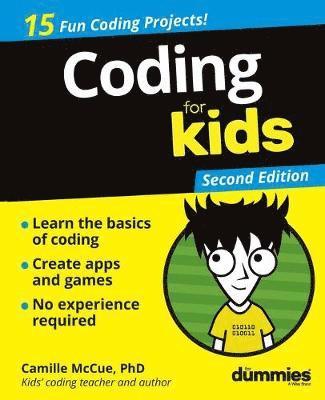
A guide for kids who want to learn codingCoding is quickly becoming an essential academic skill, right up there with reading, writing, and arithmetic. This book is an ideal way for young learners ages 8-13 who want more coding knowledge than you can learn in an hour, a day, or a week.Written by a classroom instructor with over a decade of experience teaching technology skills to kids as young as five, this book teaches the steps and logic needed to write code, solve problems, and create fun games and animations using projects based in Scratch and JavaScript. This 2nd Edition is fully updated to no longer require any limited-time software downloads to complete the projects. Learn the unique logic behind writing computer codeUse simple coding tools
ideal for teaching kids and beginnersBuild games and animations
you can show off to friendsAdd motion and interactivity to your projects Whether you’re a kid ready to make fun things using technology or a parent, teacher, or mentor looking to introduce coding in an eager child’s life, this fun book makes getting started with coding fun and easy!
Produktinformation
- Utgivningsdatum:2019-05-31
- Mått:188 x 234 x 20 mm
- Vikt:613 g
- Format:Häftad
- Språk:Engelska
- Serie:For Kids For Dummies
- Antal sidor:368
- Upplaga:2
- Förlag:John Wiley & Sons Inc
- ISBN:9781119555162
Utforska kategorier
Mer om författaren
Camille McCue, PhD is a STEM educator and leader who has worked for IBM, NASA, PBS, and numerous independent schools. She has taught every grade from kindergarten to grad school, covering topics ranging from Scratch to AP computer science. Camille is co-author of Helping Kids with Coding For Dummies and author of Getting Started with Coding and Getting Started with Engineering.
Innehållsförteckning
- Introduction 1About This Book 1Foolish Assumptions 2Icons Used in This Book 3Beyond the Book 4Where to Go from Here 4Part 1: Getting Started 5Chapter 1: What Is Coding? 7What Languages Will I Use? 8What Does a Computer Program Look Like? 9A Hello World! Example 10Recipe for a Program 11Planning a Program 13Prepping Yourself to Code 15Coding Cool Stuff 16Chapter 2: Working with Programming Languages and IDEs 18Basic IDE Setup and Navigation 19Adding Hardware 33Getting Fancier with User Interfaces 36Chapter 3: When Things Go Wrong 40Syntax Errors 41Logic Errors 42Debugging Scratch Programs 43Debugging App Lab Programs 45Debugging MakeCode Programs 49Commenting Out Code when Debugging 51Part 2: Sounds, Color, Random Surprises 53Chapter 4: Orchestra 55Brainstorm 56Sidebar: Event-driven programming 56Start a New Project 57Add a Backdrop 58Add Instrument Sprites 59Add a Singer Sprite and Modify Its Costume 61Code Each Instrument to Play a Sound 63Sidebar: Parallel processing 67Save, Test, and Debug Your Program 67Share Your Program with the World 68Enhance Your Toy 68Chapter 5: Foley Sound Generator 69Brainstorm 69Sidebar: User Interfaces 70Start a New Project 71Add a Background 72Add Sound and Stop Sounds Buttons 75Code the Sound Buttons to Play 78Code the Stop Sounds Button to Stop Sounds 80Save, Test, and Debug Your App 82Share Your App with the World 82Enhance Your App 82Chapter 6: Lucky Numbers 83Brainstorm 84Start a New Project 85Code Button A 85Sidebar: Coding Randomness 87Code Button B 87Save, Test, and Debug Your Program 89Transfer Your Program to the micro:bit 89Share Your Program with the World 90Enhance Your Toy 90Chapter 7: Mondrian Art Toy 91Brainstorm 92Start a New Project 92Add a Background Color 93Sidebar: RGBA Color 95Add a Title Label 96Add Fill and Clear Buttons 97Code a Canvas and Paintbrush 99Code to Draw a Rectangle 101Code to Fill Rectangles with Color 102Code a Clear Button to Erase a Painting 103Save, Test, and Debug Your App 105Share Your App with the World 105Enhance Your App 106Part 3: Moving from Here to There, Again and Again 107Chapter 8: Emoji Explosion 109Brainstorm 110Start a New Project 110Add a Backdrop 110Add an Emoji Sprite 111Code the Stage to Play a Sound 113Code the Green Flag for the Emoji Sprite 115Sidebar: Cloning and Inheritance 116Code the makeEmojis Block 118Code when I start as a clone for the Emoji Sprite 119Code the explode Block for the Emoji Clones 121Save, Test, and Debug Your Program 123Share Your Program with the World 124Enhance Your Animated Scene 124Sidebar: Setting Position 124Sidebar: Setting Direction 127Sidebar: Moving 129Sidebar: Simple Repeat Loops 130Sidebar: New Blocks (aka Functions) 131Chapter 9: Smelephant 133Brainstorm 134Start a New Project 134Add a Backdrop 134Add a Smelephant Sprite 135Sidebar: Rotation Style in Scratch 137Code the Green Flag Code of the Smelephant 138Code the Smelephant’s Up Arrow Key Control 139Sidebar: Animating Shapes 141Code Arrow Keys for Moving the Smelephant Down, Left, and Right 144Add a Flower Sprite 145Code the Green Flag for the Flower Sprite 147Code the makeFlowers Block 148Code when I start as a clone for the Flower Sprite 150Code the getSmelled Block for the Flower Clones 151Add a Monkey Sprite 153Code the Green Flag for the Monkey 154Code the chase Block 155Save, Test, and Debug Your Program 158Share Your Program with the World 158Enhance Your Animated Scene 158Sidebar: Key Control 159Sidebar: Collisions 160Sidebar: Show and Hide 162Part 4: Variables, Simple Conditionals, and I/O 163Chapter 10: Mascot Greeter 165Brainstorm 166Start a New Project 166Sidebar: Inputs and Outputs (I/O) 167Add a Backdrop 168Add a Mascot Sprite 168Add Text-to-Speech Commands 169Sidebar: Strings and String Operations 170Code the Mascot Sprite to Greet 171Save, Test, and Debug Your Program 173Share Your Program with the World 173Enhance Your Program 173Chapter 11: Weird Text Message 174Brainstorm 175Start a New Project 175Name the Input Screen for the App 176Add a Background Color to the Input Screen 176Add an Instruction Label 177Add Category Labels and Text Input Fields 178Add a Button to Trigger the Action 181Add and Name an Output Screen 183Add a Message Image to the Output Screen 183Add a Message Label to the Output Screen 185Code the App 186Save, Test, and Debug Your App 188Share Your App with the World 189Enhance Your App 189Sidebar: Dilbert’s Jargonator 190Sidebar: ELIZA, the Turing Test, and AI 191Chapter 12: Vote Machine 192Brainstorm 193Start a New Project 193Rename the Screen 194Add a Title Label to the App 194Add Images for the Candidates 195Add Labels for Each Candidate 197Code Variables for the First Candidate 198Code the First Candidate to Register a Vote 199Sidebar: Working with Number Variables 200Code Variables for the Remaining Candidates 204Sidebar: Changing and Incrementing Variable Values 205Code Remaining Candidates to Register Votes 206Save, Test, and Debug Your App 207Share Your App with the World 208Enhance Your App 208Chapter 13: Happy New Year! 209Brainstorm 210Start a New Project 210Add a Backdrop 211Add a Glittery Ball 211Code the Ball to Drop 213Create a Countdown Variable 214Sidebar: Google Language Translation 217Add Text-to-Speech and Translate Commands 217Add a Cheer Sound to the Ball Sprite 218Code the Countdown Clock 219Sidebar: Decrementing a Variable 221Save, Test, and Debug Your Program 223Sidebar: Simple Conditionals and Booleans 223Share Your Program with the World 224Enhance Your Toy 224Chapter 14: Light Theremin 225Brainstorm 226Start a New Project 227Code the First Sound Conditional 228Code More Sound Conditionals 231Sidebar: Advanced Conditionals 232Save, Test, and Debug Your Program 236Sidebar: IoT and Sensors in Circuits 236Transfer Your Program to the micro:bit 237Share Your Program with the World 238Enhance Your Toy 238Part 5: Lists, Loops, and Logic 239Chapter 15: Magic 8-Ball 241Brainstorm 242Start a New Project 242Code on start 243Sidebar: Simple Lists (Arrays) 245Code on shake 246Save, Test, and Debug Your Program 248Transfer Your Program to the micro:bit 249Share Your Program with the World 249Enhance Your Toy 249Sidebar: eToys 250Chapter 16: Sock Sort 252Brainstorm 253Start a New Project 253Add a Backdrop 254Add Red and White Sock Sprites 255Add Mixed, Red, and White Lists 256Code the Green Flag (Create List) 258Code the clearLists Block 263Code the Sorting Process 264Save, Test, and Debug Your Program 268Share Your Program with the World 268Enhance Your Program 268Sidebar: Sorting Algorithms 269Chapter 17: Evil Olive 272Brainstorm 273Start a New Project 273Add a Background Image to the Screen 273Add an Instruction Label 274Add a Text Input Field 276Create and Add Evil Olive to the Screen 277Add a Message Label to the Screen 278Code the App 279Save, Test, and Debug Your App 282Share Your App with the World 283Enhance Your App 283Sidebar: For Loops 284Sidebar: Searching Algorithms 285Chapter 18: Sushi Matchup 286Brainstorm 287Start a New Project 288Draw a Toy Interface on the Backdrop 288Add a Button Sprite 292Add Reels Sprites 293Add a Status Sprite 296Code the Button to Trigger the Spin 299Create wear Variables 302Add Sounds 304Code the Reels to Spin 306Code the checkMatch Block 309Code the status Sprite 314Save, Test, and Debug Your Program 315Share Your Program with the World 315Enhance Your Program 316Sidebar: Broadcasting 316Sidebar: Logical Operators 317Part 6: Onwards and Upwards 319Chapter 19: Creating and Sharing 321Programming Your Own Ideas 322Sharing and Showcasing Your Work 325Chapter 20: Where to Go from Here 336Upping Your Game 337Next Steps 340Index 343
Hoppa över listan


Du kanske också är intresserad av
- Signerad!
- Nyhet
SIGNERAD - Där färgen får styra : En berättelse i akvarell
Maximilian Svensson, Linda Newnham
Inbunden
319 kr
- Nyhet
- Nyhet
- Signerad!
- Nyhet