• Fri frakt över 249 kr
  • •
  • Snabba leveranser
  • •
  • Billiga böcker
Kundservice

Du är på sajten för privatpersoner.

Företag, bibliotek eller offentlig verksamhet?

Du handlar på classic.bokus.com, där alla dina funktioner finns intakta.
Till classic.bokus.com
Bokus logotyp. Gå till startsidan.
  • Erbjudanden
  • Nyheter
  • Student
  • Topplistor
  • Barn & ungdom
  • Bokus Play
  • E-böcker
  • Pocketböcker
  • Spel & pussel

10% rabatt på allt med kod: NYSTART10 →

Sidfot

Mina sidor

    Hjälp

    • Kundservice
    • Vanliga frågor och svar
    • Frakt och leverans
    • Retur vid ångerrätt
    • Reklamera vara
    • Betalning
    • Köpvillkor
    • Allmänna villkor
    • Information om webbplatsens tillgänglighet

    Om Bokus

    • Om oss
    • Pressrum
    • För studenter
    • För företag
    • För bibliotek och offentlig verksamhet
    • För leverantörer
    • Hållbarhet

    Populärt

    • Aktuella erbjudanden
    • Presentkort
    • Studentlitteratur
    • Nya böcker
    • Topplistor
    • Signerade böcker
    • Engelska böcker

    Inspiration

    • Boktips
    • BookTok
    • Populära bokserier
    • Barnbokskaraktärer
    • Populära författare
    Logotyp för Bokus
    Följ oss på Facebook (extern länk)Följ oss på Instagram (extern länk)Följ oss på YouTube (extern länk)Följ oss på TikTok (extern länk)
    bokus @ CookiesAnpassa cookiesIntegritetspolicyKöpvillkor
    Till Citymail hemsida (extern länk)Till Budbee hemsida (extern länk)Till Postnord hemsida (extern länk)Till Schenker hemsida (extern länk)Till Early Bird hemsida (extern länk)Till Walleys hemsida (extern länk)
    1. Data och IT
    2. Hårdvara

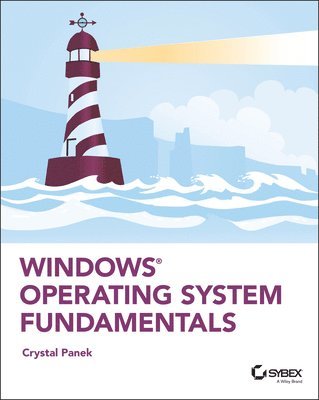
    Windows Operating System Fundamentals

    AvCrystal Panek

    Häftad, Engelska, 2019

    295 kr

    Beställningsvara. Skickas inom 5-8 vardagar. Fri frakt över 249 kr.

    Fler format och utgåvor

    E-bok

    379 kr

    E-bok

    378 kr

    Beskrivning

    A clear and concise resource, the ideal guide to Windows for IT beginnersWindows Operating System Fundamentals covers everything you need to know about Windows 10. Learn to master the installation process and discover the cool new features of Windows 10, including Edge, Cortana, and more. And because this book follows the Windows Server Operating System Fundamentals MTA Certification, it is perfect for IT professionals who are new to the industry and need an entry point into IT certification.This book covers the basics of the Windows operating system, from setting up user accounts to using the start menu, running applications, and setting up internet access. You’ll be prepared to upgrade a computer to Windows 10 and to master the basic tools necessary to work effectively within the OS. Each chapter closes with a quiz so you can test your knowledge before moving to the next section. Learn to configure your Windows 10 operating system, optimize account controls, configure user profiles, customize system options, and more!Understand how to use Windows applications and tools for managing LAN settings, configuring Microsoft Edge, and setting up remote assistanceUse Windows to manage devices like printers, cloud storage, OneDrive, and system devicesMaintain, update, protect, and backup your data by configuring Windows Update, automated backup, and system recovery and restoreWith Windows Operating System Fundamentals, IT Professionals looking to understand more about Windows 10 will gain the knowledge to effectively use applications, navigate files and folders, and upgrade client systems. Thanks to the troubleshooting tools and tips in this book, you can apply your new skills in real-world situations and feel confident while taking the certification exam.

    Produktinformation

    • Utgivningsdatum:2019-12-12
    • Mått:185 x 234 x 25 mm
    • Vikt:612 g
    • Format:Häftad
    • Språk:Engelska
    • Antal sidor:416
    • Förlag:John Wiley & Sons Inc
    • ISBN:9781119650515

    Utforska kategorier

    • Hårdvara inom Data och IT
    • Operativsystem inom Data och IT

    Mer om författaren

    Crystal Panek, MCP, MCP+I, MCSA, MCSE, MCTS, MCDBA has trained students and IT professionals at the MicroC, Stellacon Corporation, and the University of New Hampshire. She served as vice-president of a large IT training company for over 15 years developing training materials and courseware to help 1000’s of students pass their certification exams. She currently creates courseware for several large IT training facilities.

    Innehållsförteckning

    • Introduction xixLesson 1 Installing and Upgrading Client Systems 1Understanding Windows Systems 3Understanding User Interfaces 4Determining Appropriate Editions Per Device Type 5Understanding Processor and Memory Architecture 10Understanding Drivers 12Understanding Windows 10 System Requirements 13Understanding Installation Types 17Installing Windows 10 18Performing a Clean Install of Windows 10 20Upgrading to Windows 10 23Migrating to Windows 10 from Previous Versions of Windows 26Skill Summary 31Knowledge Assessment 32Multiple Choice 32Fill in the Blank 34True/False 34Case Scenarios 34Scenario 1-1: Troubleshooting a Compatibility Problem 35Scenario 1-2: Converting a Small Office to Windows 10 35Scenario 1-3: Selecting the Right Computer and Operating System 35Scenario 1-4: Installing Windows 10 35Lesson 2 Understanding Operating System Configurations 37Understanding User Accounts 39Create a User Account 40Configuring and Optimizing User Account Control (UAC) 42Review UAC Settings 44Configuring Windows 10 45Introducing Windows 10 Settings 47Using Control Panel 50Configuring System Options 53Changing the Date and Time 56Configuring the Desktop and Taskbar Settings 56Configuring the Start Menu 60Configuring File Explorer Settings 60Configuring User Profiles 62Configuring Folder Locations 63Configuring Libraries 65Configuring Display Settings 67Configuring Power Settings 70Configuring Accessibility Options 74Creating and Managing Shortcuts 78Configuring Hyper-V 80Enable the Hyper-V Feature 80Creating and Configuring Virtual Machines 82Creating and Managing Virtual Switches 87Creating and Managing Virtual Disks 90Creating and Managing Checkpoints 91Skill Summary 92Knowledge Assessment 94Multiple Choice 94Fill in the Blank 95True/False 96Case Scenarios 96Scenario 2-1: Getting Administrative-Level Privileges 96Scenario 2-2: Configuring Accessibility Features 96Scenario 2-3: Running a Legacy Application 96Scenario 2-4: Creating a Better User Experience 96Lesson 3 Understanding Native Applications, Tools, Mobility, and Remote Management and Assistance 97Configuring Internet Explorer 99Managing Cookies and Privacy Settings 99Configuring Security Zones 104Using Dynamic Security and Protected Mode 106Configuring the SmartScreen Filter and Phishing 108Managing Add-Ons 109Configuring Compatibility Mode 111Configuring Secure Sockets Layer (SSL) and Certificates 112Managing Favorites 113Managing LAN Settings 114Configuring Microsoft Edge 116Configuring Cortana 118Introducing Accessory Programs 119Using Snip & Sketch 120Using Windows Media Player 12 125Supporting Mobile Access and Data Synchronization 130Synchronizing Your PC Settings 130Configuring Offline Files 132Using Windows Mobility Center 136Change Mobility Center Settings 138Accessing a Computer Remotely 138Configuring Remote Desktop 139Configuring Remote Assistance 144Configuring Remote Management Settings 148Using the Microsoft Management Console to Manage Systems Remotely 149Using Windows Remote Management 153Using WinRS.exe 155Introducing Windows PowerShell 155Using Remote Windows PowerShell 160Skill Summary 162Knowledge Assessment 163Multiple Choice 163Fill in the Blank 164True/False 165Case Scenarios 165Scenario 3-1: Securing Internet Explorer 11 165Scenario 3-2: Offering Remote Assistance 165Scenario 3-3: Viewing Logs Remotely 166Scenario 3-4: Creating a Playlist 166Lesson 4 Managing Applications, Services, and Disks 167Configuring Applications 169Configuring Desktop Apps 169Configuring Windows Features 171Supporting Desktop Application Co-Existence 172Troubleshooting Program Compatibility 172Configuring Startup Options 174Managing Windows Store Apps 176Configuring the Windows Store 176Implementing Windows Store Apps 178Understanding Group Policy and Network Application Installation 180Understanding Services 181Understanding Service Startup Types 183Using MSConfig (System Configuration Utility) 189Change System Configuration Settings 193Managing Processes and Applications with Task Manager 194Understanding Storage 198Understanding Storage Device Types 198Understanding Disk and Drive Types 201Understanding File Systems 203Using Disk Management to Configure Disks, Volumes, and File Systems 205Encrypting and Compressing Files and Folders 212Understanding Encrypting File System (EFS) 213Understanding BitLocker 217Skill Summary 220Knowledge Assessment 222Multiple Choice 222Fill in the Blank 223True/False 224Case Scenarios 224Scenario 4-1: Providing Redundancy on a Client Computer 224Scenario 4-2: Protecting Laptop Computers 225Scenario 4-3: Uninstalling Local Software 225Scenario 4-4: Running a Windows 7 Application on Windows 10 225Lesson 5 Managing Devices 227Understanding Cloud Storage 228Using OneDrive to Manage Files and Folders 229Understanding Printing Devices 232Understanding Local Printers 232Understanding Network Printers 236Printing a Document 237Understanding Print Queues 239Understanding Internet Printing 241Understanding System Devices and Device Drivers 242Managing Devices 243Using the Devices and Printers Folder 245Using Device Manager 247Troubleshooting Problem Devices 252Skill Summary 255Knowledge Assessment 256Multiple Choice 256Fill in the Blank 257True/False 258Case Scenarios 258Scenario 5-1: Troubleshooting Print Jobs 258Scenario 5-2: Troubleshooting a Printer Driver 258Scenario 5-3: Changing Print Drivers 259Scenario 5-4: Using Cloud Services 259Lesson 6 Understanding File and Print Sharing 261Understanding File and Printer Sharing Basics 263Configuring HomeGroup Connections 266Creating Shares 271Configuring Public Folders 271Configuring File Sharing 272Configuring File System Permissions 276Understanding Effective NTFS Permissions 279Viewing Effective Permissions on a Resource 283Combining NTFS and Share Permissions 285Mapping Drives 285Configuring Printer Sharing 288Skill Summary 290Knowledge Assessment 291Multiple Choice 291Fill in the Blank 292True/False 293Case Scenarios 293Scenario 6-1: Picking an Appropriate File Sharing Method 293Scenario 6-2: Creating and Configuring a Homegroup 294Scenario 6-3: Restricting Permissions 294Scenario 6-4: Mapping a Network Drive 294Lesson 7 Maintaining, Updating, and Protecting Windows 10 295Exploring Built-in Maintenance Tools 297Using Disk Defragmenter 297Using Disk Cleanup 300Using Task Scheduler 301Using Security and Maintenance (formerly called Action Center) 308Using System Information 310Maintaining the Windows Registry 312Browse and Back Up the Windows Registry 314Configuring and Managing Updates 315Configuring Windows Update Options 316Managing Update History and Rolling Back Updates 319Implementing Insider Preview 320Implementing Semi-Annual Channel, Semi-Annual Channel (Targeted), & Long-Term Servicing Branch (LTSB) Scenarios 320Defending Your System from Malicious Software 322Understanding Windows Firewall 324Managing Client Security Using Windows Defender 326Skill Summary 331Knowledge Assessment 332Multiple Choice 332Fill in the Blank 333True/False 334Case Scenarios 334Scenario 7-1: Automating Computer Maintenance and Program Launching 334Scenario 7-2: Removing Viruses Safely 334Scenario 7-3: Gathering System Information 335Scenario 7-4: Distributing Windows Updates Across a Network 335Lesson 8 Understanding Backup and Recovery Methods 337Understanding Local, Network, and Automated Backup Methods 338Restoring Previous Versions of Files and Folders 339Schedule a Windows 10 Backup to Include a System Image 340Restore a File from a Windows 10 Backup 342Configuring System Recovery 343Configuring a System Restore 343Configuring a Windows 10 File Recovery Drive 346Configuring File History 347Performing Recovery Operations Using Windows Recovery 351Skill Summary 358Knowledge Assessment 360Multiple Choice 360Fill in the Blank 361True/False 362Case Scenarios 362Scenario 8-1: Scheduling File Backups 362Scenario 8-2: Installing from an Image 363Scenario 8-3: Creating a System Repair Disc 363Scenario 8-4: Resolving a Driver Problem Using Recovery Boot Options 363Appendix Answer Key 365Lesson 1: Installing and Upgrading Client Systems 366Answers to Knowledge Assessment 366Answers to Business Case Scenarios 367Lesson 2: Understanding Operating System Configurations 367Answers to Knowledge Assessment 367Answers to Business Case Scenarios 368Lesson 3: Understanding Native Applications, Tools, Mobility, and Remote Management and Assistance 369Answers to Knowledge Assessment 369Answers to Business Case Scenarios 370Lesson 4: Managing Applications, Services, Folders, and Libraries 371Answers to Knowledge Assessment 371Answers to Business Case Scenarios 372Lesson 5: Managing Devices 372Answers to Knowledge Assessment 372Answers to Business Case Scenarios 373Lesson 6: Understanding File and Print Sharing 374Answers to Knowledge Assessment 374Answers to Business Case Scenarios 375Lesson 7: Maintaining, Updating, and Protecting Windows 10 376Answers to Knowledge Assessment 376Answers to Business Case Scenarios 377Lesson 8: Understanding Backup and Recovery Methods 378Answers to Knowledge Assessment 378Answers to Business Case Scenarios 379Index 381