• Fri frakt över 249 kr
  • •
  • Snabba leveranser
  • •
  • Billiga böcker
Kundservice

Du är på sajten för privatpersoner.

Företag, bibliotek eller offentlig verksamhet?

Du handlar på classic.bokus.com, där alla dina funktioner finns intakta.
Till classic.bokus.com
Bokus logotyp. Gå till startsidan.
  • Erbjudanden
  • Nyheter
  • Student
  • Topplistor
  • Barn & ungdom
  • Bokus Play
  • E-böcker
  • Pocketböcker
  • Spel & pussel

10% rabatt på allt med kod NYSTART10 →

Sidfot

Mina sidor

    Hjälp

    • Kundservice
    • Vanliga frågor och svar
    • Frakt och leverans
    • Retur vid ångerrätt
    • Reklamera vara
    • Betalning
    • Köpvillkor
    • Allmänna villkor
    • Information om webbplatsens tillgänglighet

    Om Bokus

    • Om oss
    • Pressrum
    • För studenter
    • För företag
    • För bibliotek och offentlig verksamhet
    • För leverantörer
    • Hållbarhet

    Populärt

    • Aktuella erbjudanden
    • Presentkort
    • Studentlitteratur
    • Nya böcker
    • Topplistor
    • Signerade böcker
    • Engelska böcker

    Inspiration

    • Boktips
    • BookTok
    • Populära bokserier
    • Barnbokskaraktärer
    • Populära författare
    Logotyp för Bokus
    Följ oss på Facebook (extern länk)Följ oss på Instagram (extern länk)Följ oss på YouTube (extern länk)Följ oss på TikTok (extern länk)
    bokus @ CookiesAnpassa cookiesIntegritetspolicyKöpvillkor
    Till Citymail hemsida (extern länk)Till Budbee hemsida (extern länk)Till Postnord hemsida (extern länk)Till Schenker hemsida (extern länk)Till Early Bird hemsida (extern länk)Till Walleys hemsida (extern länk)
    1. Data och IT
    2. Hårdvara

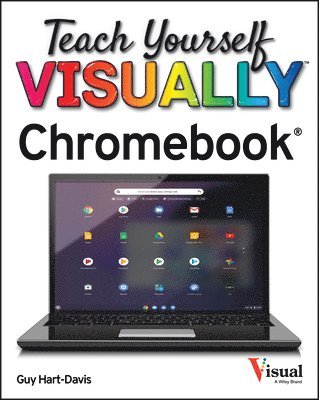
    Teach Yourself VISUALLY Chromebook

    AvGuy Hart-Davis

    Häftad, Engelska, 2021

    Del i serien Teach Yourself VISUALLY (Tech)

    223 kr

    Beställningsvara. Skickas inom 5-8 vardagar. Fri frakt över 249 kr.

    Fler format och utgåvor

    E-bok

    281 kr

    E-bok

    281 kr

    Beskrivning

    Teach Yourself VISUALLY Chromebook is your ultimate guide to getting the most out of your Chromebook! Designed for ease of use and portable functionality, Chromebook is the device of choice for children, teens, and adults alike. Learn to setup and use your new Chromebook by configuring essential settings and connecting external devices.When you first open your Chromebook, you'll see several app icons sitting at the bottom of the screen. This area is called the Shelf, and it mimics the Windows taskbar. The Chrome OS Shelf shows which apps are running and provides an easy way to launch apps. To make the Chromebook your own you'll want to add your commonly used apps to the Shelf, and remove the ones you don't use.This guide will also teach you tips and tricks for how to share content with others from your Chromebook and how to download, run, and manage your applications!Chromebook is designed to be one of the most feature-rich and user-friendly solutions that allows users the portable functionality of a laptop and tablet running Chrome OS with the ability to run Android apps and Linux desktop apps. Get started with Chromebook with over 800 full-color imagesMaster ChromeOS and get up and running in no timePersonalize your desktop background

    Produktinformation

    • Utgivningsdatum:2021-01-04
    • Mått:185 x 234 x 18 mm
    • Vikt:703 g
    • Format:Häftad
    • Språk:Engelska
    • Serie:Teach Yourself VISUALLY (Tech)
    • Antal sidor:352
    • Förlag:John Wiley & Sons Inc
    • ISBN:9781119762966

    Utforska kategorier

    • Hårdvara inom Data och IT

    Mer om författaren

    Guy Hart-Davis is the author of more than 100 computing books, including Teach Yourself VISUALLY iPhone, Teach Yourself VISUALLY MacBook, and Teach Yourself VISUALLY Google Workspace

    Innehållsförteckning

    • Chapter 1 Getting Started with Your ChromebookUnderstanding the Chromebook Concept 4Explore Different Types of Chromebooks 6Set Up Your Chromebook 8Start Your Chromebook and Sign In 14Explore the Chrome OS Desktop 16Point, Click, and Scroll with the Touchpad 18Using the Touchscreen 20Using the Keyboard 21Using Keyboard Shortcuts 22Connect to a Wi‐Fi Network 24Give Commands 26Open, Close, and Manage Windows 28Work with Notifications 30Lock and Unlock Your Chromebook’s Screen 32Put Your Chromebook to Sleep and Wake It Up 34Sign Out and Sign Back In 36Shut Down Your Chromebook 38Chapter 2 Configuring Essential Chromebook SettingsConfigure the Shelf 42Configure the Launcher 44Change the Wallpaper 46Change the Display Scaling 48Configure the Night Light Settings 50Choose Power and Sleep Settings 52Set a Screen Lock for Security 54Configure the Keyboard 56Configure the Touchpad 58Configure Notifications and Do Not Disturb 60Configure Sound Settings 62Choose Which Pages to Display on Startup 64Customize the Default Chrome Theme 66Apply a Browser Theme to Chrome 68Chapter 3 Configuring Accessibility SettingsDisplay the Accessibility Settings 72Make the Screen Easier to See 74Zoom the Screen with the Magnifier Features 76Configure Keyboard Accessibility Settings 78Configure Mouse and Touchpad Accessibility Settings 80Configure Audio Accessibility Settings 82Configure Text‐to‐Speech Features 84Chapter 4 Connecting External DevicesConnect and Use Bluetooth Devices 88Connect and Configure an External Mouse 90Connect and Configure a Second Display 92Connect a Printer and Print 94Using microSD Cards and USB Memory Sticks 96Cast Content to a Chromecast Device 98Connect Your Android Phone to Your Chromebook 102Connect to the Internet via Your Android Phone 104Connect to the Internet via USB Tethering 106Chapter 5 Sharing Your Chromebook with OthersEnable Guest Browsing 110Using a Chromebook in Guest Mode 112Configure the Sign‐In Screen 114Restrict the Users Who Can Sign In 116Implement Parental Controls 118Sign In Multiple Users and Switch Among Them 124Chapter 6 Running and Managing Apps and ExtensionsUnderstanding Apps and Extensions 128Run an App 130Switch Among Open Windows 132Organize Your Windows with Desks 134Install an App from the Web Store 136Install an Extension 138Pin and Unpin Extensions 140Configure Settings for an Extension 141Manage and Remove Extensions 142Install an Android App 144Run an Android App 146Configure Preferences for Android Apps 148Chapter 7 Managing Your Files and FoldersUnderstanding Your File Storage Options 152Open the Files App and Explore Local Storage 154Explore Your Google Drive Storage 156Enable and Use Google Drive’s Offline Mode 158Work with Files on USB Drives or microSD Cards 160Connect Your Chromebook to a Network Drive 162Connect to Another Cloud File Service 164Open a File from Storage 168Change the Default App for a File Type 170Copy a File or Folder 172Move a File or Folder 174Rename a File or Folder 176Chapter 8 Surfing the WebGet Info on a File or Folder 177Search for a File or Folder 178Compress and Uncompress Files 180Recover a File from the Trash on Google Drive 182Open a Web Page 186Follow a Link to a Web Page 187Open Several Web Pages at Once 188Navigate Among Web Pages 190Return to a Recently Visited Page 192Play Music and Videos on the Web 194Set Your Search Engine 196Create Bookmarks for Web Pages 198Download Files 200Run a Safety Check in Chrome 202Configure Chrome for Security and Privacy 204Chapter 9 Sending and Receiving EmailAdd External Email Accounts to Gmail 212Navigate the Gmail Interface 216Receive and Read Your Email Messages 218Send an Email Message 220Reply to a Message 222Forward a Message 224Include Formatting, Emojis, and Pictures in Messages 226Send an Email Message Using Confidential Mode 228Schedule a Message for Sending Later 229Send a File or a Link via Email 230Receive a File or a Link via Email 232View Email Messages by Conversations 236Block and Unblock Senders 238Create Email Filters 240Chapter 10 Chatting and CallingChat via Google Hangouts from Gmail 246Chat via Google Hangouts 248Video Chat via Google Hangouts 250Make Video Calls via Google Duo 252Set Up Google Messages for Web 254Chat from Your Chromebook Using Messages 256Chapter 11 Organizing Your LifeManage Your Google Account 260Open Google Calendar and Create a Shortcut 268Navigate the Google Calendar Interface 270Create a New Calendar 272Create an Event in Google Calendar 274Share a Calendar with Other People 276Subscribe to a Shared Calendar 278Open Google Contacts and Create a Shortcut 280Add Someone to Your Contacts 282Change a Contact’s Information 284Import Contacts into Google Contacts 286Merge and Fix Contacts 288Organize Your Contacts with Labels 290Track Your Commitments with Google Tasks 292Get Directions with Google Maps 296Chapter 12 Advanced Moves and TroubleshootingKeep Your Chromebook Current with Updates 300Connect to a Remote Network via a VPN 302Using Remote Access and Remote Support 306Deal with Frozen Apps and Chrome Browser Tabs 310Using Task Manager for Troubleshooting 312Troubleshoot Network Problems 314Troubleshoot Wi‐Fi Connections 316Shut Down a Frozen Chromebook 318Powerwash Your Chromebook 320Recover Your Chromebook 322Index 326