• Fri frakt över 249 kr
  • •
  • Snabba leveranser
  • •
  • Billiga böcker
Kundservice

Du är på sajten för privatpersoner.

Företag, bibliotek eller offentlig verksamhet?

Du handlar på classic.bokus.com, där alla dina funktioner finns intakta.
Till classic.bokus.com
Bokus logotyp. Gå till startsidan.
  • Erbjudanden
  • Nyheter
  • Student
  • Topplistor
  • Barn & ungdom
  • Bokus Play
  • E-böcker
  • Pocketböcker
  • Spel & pussel

10% rabatt på allt med kod NYSTART10 →

Sidfot

Mina sidor

    Hjälp

    • Kundservice
    • Vanliga frågor och svar
    • Frakt och leverans
    • Retur vid ångerrätt
    • Reklamera vara
    • Betalning
    • Köpvillkor
    • Allmänna villkor
    • Information om webbplatsens tillgänglighet

    Om Bokus

    • Om oss
    • Pressrum
    • För studenter
    • För företag
    • För bibliotek och offentlig verksamhet
    • För leverantörer
    • Hållbarhet

    Populärt

    • Aktuella erbjudanden
    • Presentkort
    • Studentlitteratur
    • Nya böcker
    • Topplistor
    • Signerade böcker
    • Engelska böcker

    Inspiration

    • Boktips
    • BookTok
    • Populära bokserier
    • Barnbokskaraktärer
    • Populära författare
    Logotyp för Bokus
    Följ oss på Facebook (extern länk)Följ oss på Instagram (extern länk)Följ oss på YouTube (extern länk)Följ oss på TikTok (extern länk)
    bokus @ CookiesAnpassa cookiesIntegritetspolicyKöpvillkor
    Till Citymail hemsida (extern länk)Till Budbee hemsida (extern länk)Till Postnord hemsida (extern länk)Till Schenker hemsida (extern länk)Till Early Bird hemsida (extern länk)Till Walleys hemsida (extern länk)
    1. Data och IT
    2. Affärsapplikationer

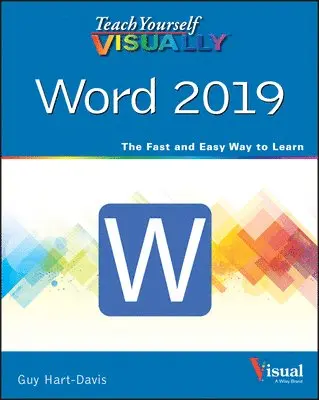
    Teach Yourself VISUALLY Word 2019

    AvGuy Hart-Davis

    Häftad, Engelska, 2020

    Del i serien Teach Yourself VISUALLY (Tech)

    223 kr

    Beställningsvara. Skickas inom 5-8 vardagar. Fri frakt över 249 kr.

    Fler format och utgåvor

    E-bok

    281 kr

    E-bok

    281 kr

    Beskrivning

    Master one of the most popular word processors ever with this essential, visual referenceTeach Yourself VISUALLY: Word 2019 provides readers with a thorough and visual exploration of the 2019 edition of Microsoft Word. Written by the celebrated author of over 100 books on computing, Guy Hart-Davis, Teach Yourself VISUALLY: Word 2019 allows you to quickly get up to speed with one of the most popular word processors on the planet.The book covers all the topics you’ll need to comprehensively master Word 2019, and includes: Full-color, step-by-step instructions showing you how to perform all the essential tasks of Microsoft Word 2019How to set up and format documents, edit them, and add images and chartsHow to post documents online for sharing and reviewing and take advantage of all the newest features of WordNewly updated to include the latest features of Microsoft Word, like how to collaborate on documents in real time, draw and write with the digital pen, new accessibility options and the new Resume Assistant, Teach Yourself VISUALLY: Word 2019 belongs on the shelf of anyone who wants to improve their effectiveness with this essential word processor.

    Produktinformation

    • Utgivningsdatum:2020-09-07
    • Mått:185 x 231 x 20 mm
    • Vikt:703 g
    • Format:Häftad
    • Språk:Engelska
    • Serie:Teach Yourself VISUALLY (Tech)
    • Antal sidor:352
    • Förlag:John Wiley & Sons Inc
    • ISBN:9781119724483

    Utforska kategorier

    • Affärsapplikationer inom Data och IT

    Mer om författaren

    Guy Hart-Davis (Barnard Castle, UK) is the author of more than 100 computing books, including Teach Yourself VISUALLY iPhone 11, Teach Yourself VISUALLY MacBook, 4th Edition, and Teach Yourself VISUALLY Android, 2nd Edition. He also writes about PCs, Windows, Linux, and VBA.

    Innehållsförteckning

    • Chapter 1 Getting Started with WordOpen Word and Use the Start Screen 4Understanding Office and the Cloud 6Explore the Word Window 8Sign In to Your Account 9Work with Backstage View 10Change the Color Scheme and Background 12Locate Commands on the Ribbon 14Give Commands Using the Keyboard and Mouse 16Using Word on Tablets and Phones 18Using Word in OneDrive and Microsoft Teams 20Work with the Mini Toolbar and Context Menus 22Enter Text in a Document 24Move the Insertion Point Around a Document 26Switch Document Views 28Understanding Document Views 29Work with the Navigation Pane 30Using Focus Mode 32Using Immersive Reader 33Chapter 2 Creating and Saving DocumentsStart a New Document 36Save a Document to Your Computer 38Save a Document to the Cloud 40Recover an Unsaved Document 42Save a Document in a Different Format 44Save a Document in PDF or XPS Format 45Set Options for Saving Documents 46Open a Word Document 48Open a Document That Uses a Different Format 50Open a Document from the Cloud 52Switch Between Open Documents 54Compare Two Documents Side by Side 56Chapter 3 Entering Text in DocumentsInsert and Add Text 60Insert Symbols and Special Characters 62Create a Hyperlink 64Delete Text 66Insert Blank Lines 68Undo, Redo, and Repeat Changes 69Select Text 70Mark and Find Your Place with Bookmarks 72Move or Copy Text 74Share Text Between Documents 76Move or Copy Several Selections 78Take Advantage of Paste Options 80Chapter 4 Editing and Proofing TextWork in Read Mode View 84Zoom In or Out 88Translate Text 89Set Options for Additional Actions 90Using Additional Actions 91Search for Text 92Replace Text or Other Items 94Count Words in a Document 96Automatically Correct Mistakes 98Automatically Insert Frequently Used Text 100Check Spelling and Grammar 102Find Synonyms, Antonyms, and Definitions 104Chapter 5 Formatting TextUnderstanding How Word’s Formatting Works 108Change the Font 110Change the Font Size 111Emphasize Information with Bold, Italic, or Underline 112Create Superscripts and Subscripts 113Change Text Case 114Change Text Color 115Apply Text Effects 116Apply a Font Style Set 117Apply Highlighting to Text 118Apply Strikethrough to Text 119Copy and Paste Text Formatting 120Remove Text Formatting 121Set the Default Font for All New Documents 122Chapter 6 Formatting ParagraphsChange Text Alignment 126Set Line Spacing Within a Paragraph 127Set Line Spacing Between Paragraphs 128Create a Bulleted or Numbered List 130Display Formatting Marks 132Hide or Display the Ruler 133Indent Paragraphs 134Set and Use Tabs 136Add a Paragraph Border 140Review and Change Formatting 142Compare Formatting 144Apply Formatting Using Styles 146Switch Styles 148Save Formatting in a Style 150Expand or Collapse Document Content 152Modify a Style 154Add Paragraph Shading 155Chapter 7 Formatting PagesAdjust Margins 158Insert and Manage Page Breaks 160Control Text Flow and Pagination 162Align Text Vertically on the Page 164Change Page Orientation 165Insert a Section Break 166Add Page Numbers to a Document 168Add Line Numbers to a Document 170Chapter 8 Reviewing and Finalizing DocumentsTrack the Changes to a Document 196Lock and Unlock Tracking 198Review Tracked Changes 200Collaborate in Real Time on a Document 202Compare Two Versions of a Document 206Combine Changes into a Single Document 208Work with Comments 210Work with Protected Documents 212Inspect a Document Before Sharing It 214Mark a Document as Final 216Create a Master Document 218Work in a Master Document 220Using the Building Blocks Organizer 172Add a Header or Footer 174Vary Headers or Footers Within a Document 176Add a Footnote 178Add an Endnote 179Find, Edit, or Delete Footnotes or Endnotes 180Convert Footnotes to Endnotes or Vice Versa 182Generate a Table of Contents 184Add a Watermark 186Add a Page Border 188Apply Document Themes and Style Sets 190Create Newspaper‐Style Columns 192Chapter 9 Working with Tables and ChartsCreate a Table 224Change the Row Height or Column Width 226Move a Table 228Resize a Table 229Add or Delete a Row 230Add or Delete a Column 232Set Cell Margins 234Add Space Between Cells 235Merge Two or More Cells into a Single Cell 236Split One Cell into Two or More Cells 237Split a Table into Two 238Add a Formula to a Table 239Align Text in Cells 240Add Shading to Cells 241Change Cell Borders 242Format a Table Using a Table Style 244Add a Chart 246Understanding Word’s Chart Types 248Chapter 10 Working with GraphicsAdd Decorative Text Using WordArt 252Add a Picture 254Insert an Online Picture 256Insert a Video 258Add a Screenshot 260Add a Shape 262Add a Text Box 264Move or Resize a Graphic 266Understanding Graphics Modification Techniques 268Understanding Text Wrapping and Graphics 270Wrap Text Around a Graphic 271Work with Diagrams 272Chapter 11 Customizing WordControl the Display of Formatting Marks 278Customize the Status Bar 279Hide or Display Ribbon Buttons 280Add a Predefined Group to a Ribbon Tab 282Create Your Own Ribbon Group 284Create Your Own Ribbon Tab 288Customize the Quick Access Toolbar 292Create Custom Keyboard Shortcuts 296Create a Macro 298Run a Macro 300Chapter 12 Printing, Sharing, and Mail MergePreview and Print a Document 304Print on Different Paper Sizes 306Print an Envelope 308Set Up Labels to Print 310Share a Word Document on OneDrive 312Email a Document as an Attachment 314Create Letters to Mass Mail 316Create Labels for a Mass Mailing 322Index 328