• Fri frakt över 249 kr
  • •
  • Snabba leveranser
  • •
  • Billiga böcker
Kundservice

Du är på sajten för privatpersoner.

Företag, bibliotek eller offentlig verksamhet?

Du handlar på classic.bokus.com, där alla dina funktioner finns intakta.
Till classic.bokus.com
Bokus logotyp. Gå till startsidan.
  • Erbjudanden
  • Nyheter
  • Student
  • Topplistor
  • Barn & ungdom
  • Bokus Play
  • E-böcker
  • Pocketböcker
  • Spel & pussel

10% rabatt på allt med kod NYSTART10 →

Sidfot

Mina sidor

    Hjälp

    • Kundservice
    • Vanliga frågor och svar
    • Frakt och leverans
    • Retur vid ångerrätt
    • Reklamera vara
    • Betalning
    • Köpvillkor
    • Allmänna villkor
    • Information om webbplatsens tillgänglighet

    Om Bokus

    • Om oss
    • Pressrum
    • För studenter
    • För företag
    • För bibliotek och offentlig verksamhet
    • För leverantörer
    • Hållbarhet

    Populärt

    • Aktuella erbjudanden
    • Presentkort
    • Studentlitteratur
    • Nya böcker
    • Topplistor
    • Signerade böcker
    • Engelska böcker

    Inspiration

    • Boktips
    • BookTok
    • Populära bokserier
    • Barnbokskaraktärer
    • Populära författare
    Logotyp för Bokus
    Följ oss på Facebook (extern länk)Följ oss på Instagram (extern länk)Följ oss på YouTube (extern länk)Följ oss på TikTok (extern länk)
    bokus @ CookiesAnpassa cookiesIntegritetspolicyKöpvillkor
    Till Citymail hemsida (extern länk)Till Budbee hemsida (extern länk)Till Postnord hemsida (extern länk)Till Schenker hemsida (extern länk)Till Early Bird hemsida (extern länk)Till Walleys hemsida (extern länk)
    1. Naturvetenskap och teknik
    2. Teknik och industri
    3. Elektronik och kommunikationer

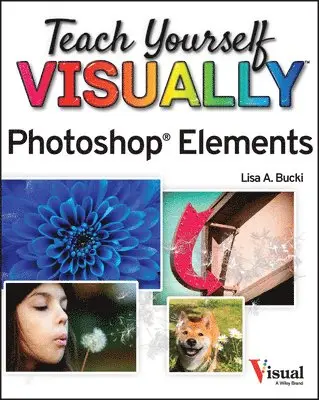
    Teach Yourself VISUALLY Photoshop Elements 2023

    AvLisa A. Bucki

    Häftad, Engelska, 2023

    Del i serien Teach Yourself VISUALLY (Tech)

    230 kr

    Beställningsvara. Skickas inom 5-8 vardagar. Fri frakt över 249 kr.

    Fler format och utgåvor

    E-bok

    395 kr

    E-bok

    395 kr

    Beskrivning

    A fast and easy way for visual learners to get a grip on Photoshop Elements Are you a visual learner? Do you prefer a single, crystal-clear screenshot showing you how to do something to a long-winded explanation telling you how to do it? If so, then this book is for you. Open up Teach Yourself VISUALLY Photoshop Elements and you’ll find vibrant, step-by-step screenshots showing you how to master over 100 Photoshop Elements tasks. Each task-based spread covers one technique at a time, ensuring you get up and running fast. You’ll learn how to: Organize, import, save, and print your photosEnhance the lighting and color of pictures that need a little sprucing upApply cool effects that make your photos more lively and interestingThe book breaks big topics down into bite-sized modules with succinct explanations, walking you through every step you need to take. The full-color screenshots demonstrate each task, and helpful sidebars offer practical, hands-on tips and tricks you’ll use every time you open Photoshop Elements. Grab a copy today!

    Produktinformation

    • Utgivningsdatum:2023-05-01
    • Mått:185 x 234 x 20 mm
    • Vikt:658 g
    • Format:Häftad
    • Språk:Engelska
    • Serie:Teach Yourself VISUALLY (Tech)
    • Antal sidor:288
    • Förlag:John Wiley & Sons Inc
    • ISBN:9781394161119

    Utforska kategorier

    • Elektronik och kommunikationer inom Naturvetenskap och teknik

    Innehållsförteckning

    • Chapter 1 Getting StartedIntroducing Photoshop Elements 2023 4Understanding Digital Images 6Start Photoshop Elements 8Explore the Editor Workspace 9Tour the Organizer Workspace 10Switch Between the Organizer and the Editor 11Introducing the Photoshop Elements Tools 12Switch Editing Modes 14Work with Tools 16Work with Panels 18Set Program Preferences 20View Rulers and Guides 22Chapter 2 Importing and Opening Digital ImagesGet Photos for Your Projects 26Import Photos from a Digital Camera or Card Reader 28Import Photos from a Scanner 30Open a Photo 32Create a Blank Image 34Save an Image 36Print Photos 38Create a Photo Panorama 40Duplicate a Photo 42Close a Photo 43Chapter 3 Applying Basic Image EditsManage Open Images 46Using Layouts 48Using the Zoom Tool 50Pan the Image 52Change the Canvas Size 54Resize an Image by Resampling 56Crop an Image 58Straighten an Image 60Rotate an Image 61Work in Quick Mode 62Apply an Effect in Quick Mode 64Add a Frame in Quick Mode 65Apply Automatic Enhancements 66Add a Texture 68Undo Edits 70Revert an Image 71Chapter 4 Using LayersIntroducing Layers 74Create and Add Content to a Layer 76Hide a Layer 78Move a Layer 79Duplicate a Layer 80Delete a Layer 81Reorder Layers 82Change the Opacity of a Layer 84Link Layers 85Merge Layers 86Rename a Layer 87Create a Fill Layer 88Blend Layers 90Chapter 5 Making SelectionsSelect an Area with the Marquee 94Select an Area with the Lasso 96Select an Area with the Magic Wand 100Select an Area with the Quick Selection Tool 102Select an Area with the Selection Brush 104Save and Load a Selection 106Invert a Selection 108Deselect a Selection 109Chapter 6 Manipulating SelectionsAdd to or Subtract from a Selection 112Move a Selection 114Apply the Content-Aware Move Tool 116Copy and Paste a Selection 118Delete a Selection 119Rotate a Selection 120Scale a Selection 121Skew or Distort a Selection 122Refine the Edge of a Selection 124Use Feathering to Create a Soft Border 126Chapter 7 Enhancing Lighting, Color, and SharpnessAdjust Levels 130Adjust Shadows and Highlights 132Change Brightness and Contrast 134Use the Dodge and Burn Tools 136Sharpen an Image 138Use the Blur and Sharpen Tools 140Adjust Skin Color 142Adjust Color with the Sponge Tool 144Replace a Color 146Convert a Color Photo to Black and White 148Add Color to a Black and White Photo 150Adjust Colors by Using Color Curves 152Apply the Auto Smart Tone Tool 154Chapter 8 Applying Quick and Guided EditsQuickly Fix a Photo 158Remove Red Eye 160Remove a Color Cast 162Restore an Old Photo 164Improve a Portrait 166Apply a Lomo Camera Effect 168Add Motion with Zoom Burst 170Create a Perfect Pet Pic 172Create Soft Focus with the Orton Effect 174Apply a Reflection 176Make a Meme 178Create a Vintage Look 180Chapter 9 Painting and Drawing on PhotosRetouch with the Clone Stamp Tool 184Remove a Spot 186Set the Foreground and Background Colors 188Add Color with the Brush Tool 190Change Brush Styles 192Use a Brush to Replace a Color 194Adjust Colors with the Smart Brush 196Draw a Simple Shape 198Add an Arrow 200Apply the Eraser 202Apply a Gradient 204Add Content from the Graphics Panel 206Add Text 208Modify Text 210Create Warped Text 212Draw Text Around a Shape 214Add a Layer Mask 216Edit a Layer Mask 218Chapter 10 Applying Filters and StylesEqualize an Image 222Create a Negative 223Blur an Image 224Distort an Image 226Turn an Image into Art 228Turn an Image into a Sketch 230Create a Print Halftone 232Add a Drop Shadow to a Layer 234Apply Other Styles 236Enhance with an Effect 237Chapter 11 Organizing Your PhotosIntroducing the Organizer 240Open the Organizer 242Change the View 243Create a Catalog 244View Photos in Media View 246View Photos in Full Screen 248View File Information 250Work with Albums 252Find Photos 254View Versions of a File 256Remove a Photo from the Organizer 257Apply an Instant Fix 258Perform Other Organization Tasks 260Index 262